
How to Connect CDJs to Pioneer DJM A9: A Step-by-Step Guide
Categories : DJ Digital Media Players
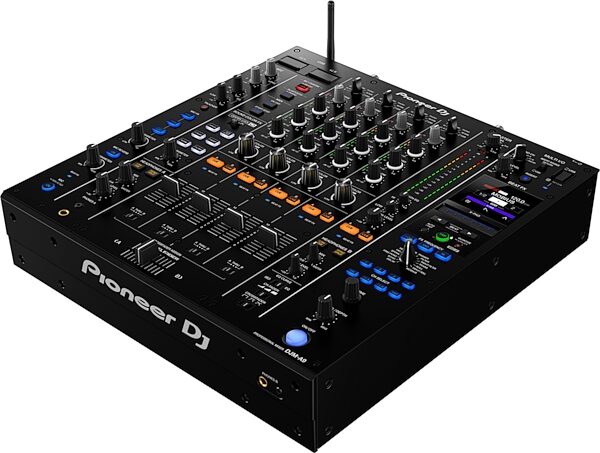
Connecting your CDJs to the Pioneer DJM A9 can feel intimidating at first, but it’s a straightforward process once you understand the basics. Whether you’re setting up for a live show, recording a set, or just practicing at home, getting your connections right is essential for performance and sound quality. In this guide, we’ll walk you through how to connect CDJs to the Pioneer DJM A9 step by step.
Or read our Pioneer DJM A9 Review
What You’ll Need
Before you start, make sure you have the following equipment:
- 2x or 4x Pioneer CDJ units (e.g., CDJ-3000, CDJ-2000NXS2)
- 1x Pioneer DJM A9 Mixer
- RCA cables (or digital coaxial cables)
- Ethernet (LAN) cables
- Power cables for each device
- USB drive or laptop (optional, for Rekordbox or Serato users)
Step 1: Position Your Equipment
Start by placing your Pioneer DJM A9 mixer at the center of your DJ booth, with your CDJs positioned on either side. This standard layout gives you optimal access to the controls and faders during your performance.
Step 2: Connect the Audio Cables
There are two main audio connection options: Analog (RCA) and Digital (Coaxial).
Analog RCA Connections:
- Take your RCA cable and plug the red and white connectors into the "LINE" input on the back of the DJM A9 for channels 1 to 4.
- Connect the other end of the RCA cable to the "Audio Out" ports on your CDJ.
- Make sure the channel selector switch on the DJM A9 is set to “LINE” for each respective CDJ channel.
Digital Coaxial (Preferred for High-Quality Sound):
- Use a digital coaxial cable to connect the digital output of each CDJ to the digital input on the DJM A9.
- On the mixer, set the input selector to “DIGITAL” on the corresponding channel.
Note: Digital connections reduce signal interference and provide better sound quality, so use them if your CDJs support it.
Step 3: Link the CDJs with LAN Cables
Pioneer’s Pro DJ Link lets CDJs share one USB drive and sync BPM, loops, and cues.
- Connect each CDJ and the DJM A9 to a LAN hub using standard Ethernet cables.
- Alternatively, connect one CDJ directly to the DJM A9’s LAN port, then daisy-chain the rest.
- Once linked, you can access tracks from one USB across all CDJs, and sync functions become available.
Step 4: Power On the Devices
- Plug in the power cables for all CDJs and the DJM A9.
- Turn on the mixer first, then power up the CDJs.
- Watch the screens — they’ll indicate LAN connectivity and audio signal if properly connected.
Step 5: Configure Input Channels
On the DJM A9:
- Make sure each channel is assigned to the correct input source (LINE or DIGITAL).
- Adjust gain knobs to control volume input from each CDJ.
- Cue each channel to test signal flow through headphones before going live.
Optional: Connect to Rekordbox or Serato
If you use software like Rekordbox or Serato DJ Pro, connect your laptop to the DJM A9 via USB. Ensure drivers and firmware are up to date.
- For Rekordbox users, link your CDJs via LAN and control decks directly.
- For Serato users, ensure the DJM A9 is set as your audio interface and channels are mapped correctly.
Troubleshooting Tips
- No Sound? Double-check RCA or digital cable connections and ensure the mixer channel is set to the correct source.
- LAN not connecting? Replace Ethernet cables and confirm all devices are on the same firmware.
- Audio distortion? Reduce gain levels and avoid clipping.
Final Thoughts
Learning how to connect CDJs to the Pioneer DJM A9 is essential for any serious DJ. Once you’re familiar with the setup, it becomes second nature and sets the foundation for smooth performances. Whether you're spinning vinyl-emulated digital sets or live remixing with effects, a proper connection ensures high-quality audio and seamless control.
If you're still new to this, don’t worry—practice your setup regularly, and soon you'll be able to connect your gear with your eyes closed.
Reviews and Articles
Discover the J&D 3.5mm TRS Male to Dual XLR Male Y Splitter Cable. A review focusing on build quality, features, audio performance, and ideal use cases for DJs and audio creators.
Discover the features, performance, and usability of the ADJ Products Media Operator BT MP3 player with Bluetooth and SD card support. Ideal for DJs and creators.
Pioneer CDJ-3000 Review | Professional DJ Media Player
Learn how to connect CDJs to the Pioneer DJM A9 with this step-by-step guide, including audio setup, LAN link, and troubleshooting tips.
Related Products :


